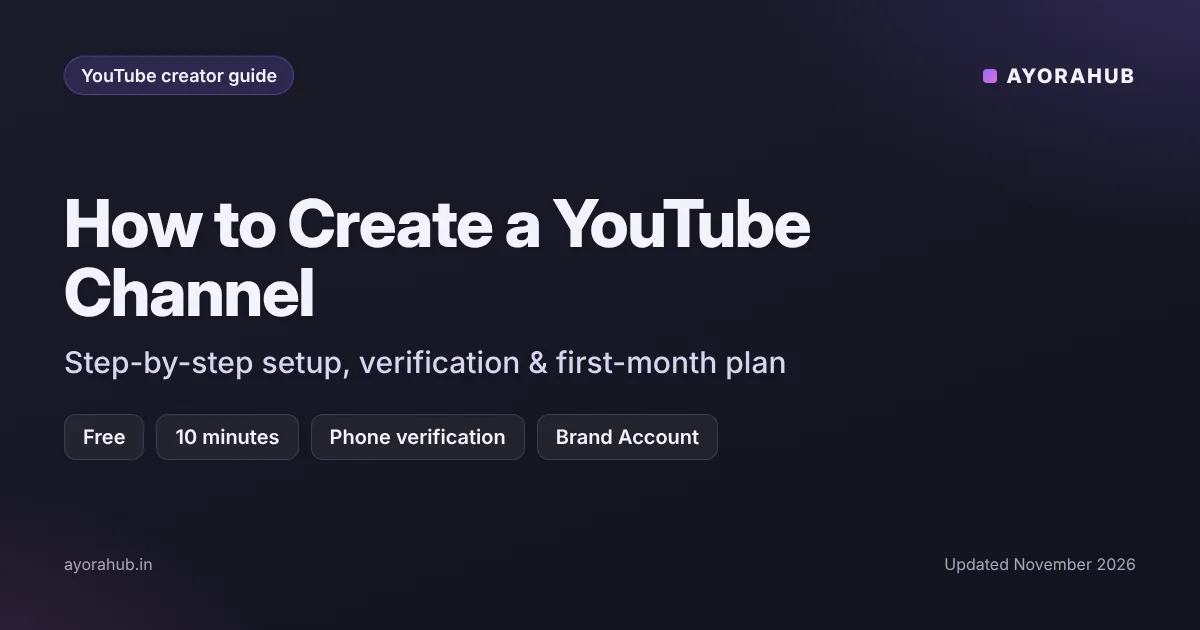
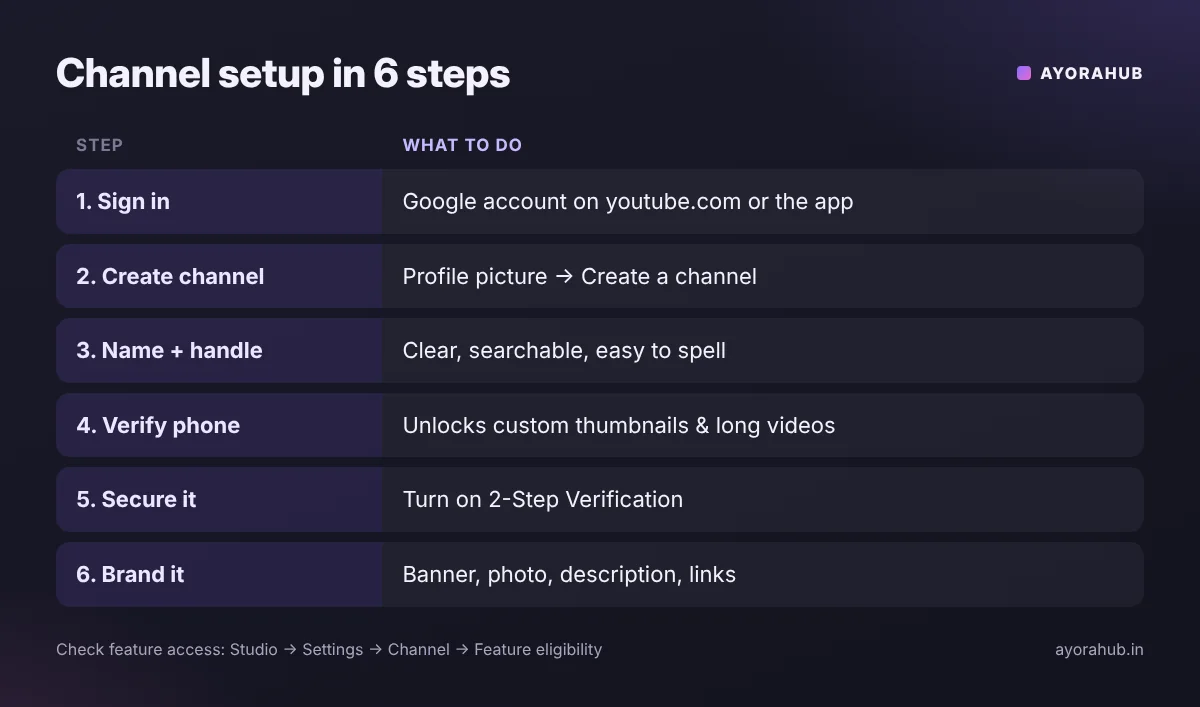
Quick answer: Here’s how to create a YouTube channel: sign in to YouTube with a Google account, tap your profile picture, choose Create a channel, then pick a name and a @handle. It is free and takes about ten minutes. Before uploading, verify your phone number in YouTube Studio — this unlocks custom thumbnails, videos longer than 15 minutes and live streaming — and turn on 2-Step Verification to protect the channel.
Most new creators lose weeks fixing things they could have set up correctly on day one: a personal-account channel they can’t share with an editor, no custom thumbnails, or a vague channel name nobody searches for. This guide covers the setup properly, then shows what to do before your first upload.
What you need before you start
- A Google account (Gmail) — or create one during setup.
- A phone number for verification.
- A channel name and handle idea (see tips below).
- A profile picture (at least 98×98 px; a square 800×800 image works well) and a banner (YouTube recommends 2560×1440 px with important content in the centre “safe area”).
- You must meet YouTube’s minimum age — 13 in most countries, higher in some. Monetization later requires an adult or a guardian to manage payments.
Step-by-step: how to create a YouTube channel
On a computer
- Go to youtube.com and sign in with your Google account.
- Click your profile picture (top right) → Create a channel.
- Enter a channel name and choose a handle (your unique @name, used in your channel URL and mentions).
- Upload a profile picture if you have one, then click Create channel.
On a phone (YouTube app)
- Open the YouTube app and sign in.
- Tap your profile picture → Your channel / Create a channel.
- Add the name, handle and photo, then confirm.
Personal channel or Brand Account channel?
If you plan to work with editors or a team, create the channel as a Brand Account (from YouTube’s “Add or manage your channel(s)” option). A Brand Account channel can have multiple managers without sharing your personal Google password, and you can transfer ownership later. Solo creators can use either; the interface for this changes occasionally, so follow the current YouTube Help page if the menu looks different.
Unlock the features new creators need
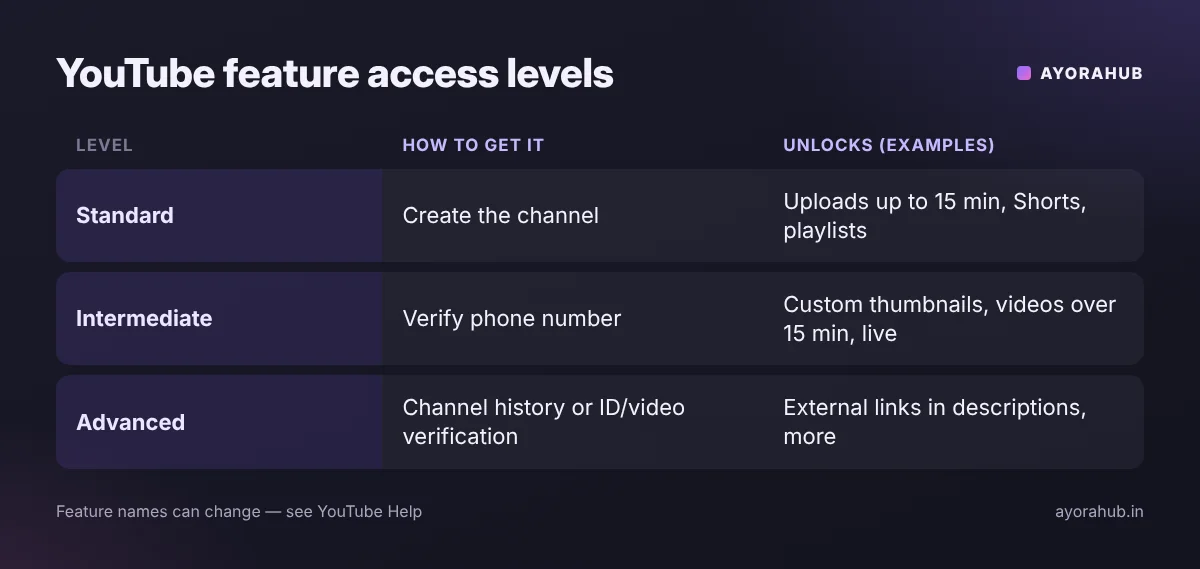
| Access level | How to get it | What it unlocks (examples) |
|---|---|---|
| Standard | Create the channel | Upload videos up to 15 minutes, playlists, Shorts |
| Intermediate | Verify your phone number | Custom thumbnails, videos longer than 15 minutes, live streaming |
| Advanced | Channel history or ID/video verification | Extra features such as external links in descriptions and appeals options |
Check yours in YouTube Studio → Settings → Channel → Feature eligibility.
Set up your channel before the first upload
- Branding (Studio → Customization): profile picture, banner and a video watermark.
- Channel description: 2–3 sentences saying who the channel is for and what they will learn — use the words people actually search, naturally.
- Links and contact email: add your website and a business email.
- Upload defaults (Studio → Settings → Upload defaults): a reusable description template, category and language.
- Channel trailer: once you have a few videos, set a short trailer for new visitors.
- Security: turn on 2-Step Verification for the Google account — required later for the Partner Program and the best defence against channel hijacking.
How to choose a channel name and niche
- Pick a clear topic: “budget tech reviews in Hindi” beats “random videos”. YouTube recommends videos to people based on what they watch — a focused channel gets a clearer audience.
- Make the name easy to say and spell — viewers will search for it.
- Check the handle is available and matches your social media names where possible.
- Avoid trademarked names (brands, other creators) that could lead to impersonation or trademark complaints.
Example: a student who wants to teach coding in Hinglish might choose the name “Code With Riya” and the handle @codewithriya, describe the channel as “Beginner coding tutorials in Hinglish — Python, web development and interview prep”, and plan a first series of five Python lessons.
Starter equipment: what you actually need
| Budget | Video | Audio | Light | Editing |
|---|---|---|---|---|
| ₹0 / $0 | Your phone’s rear camera | Wired earphones with mic, quiet room | Face a window (daylight) | YouTube app editor, CapCut or DaVinci Resolve (free) |
| Low | Phone + tripod | Clip-on lavalier mic | One LED panel or ring light | Free desktop editor |
| Mid | Used mirrorless camera or newer phone | USB or wireless mic | Two soft lights | Paid editor if needed |
Upgrade in this order: audio → light → camera. Viewers forgive average video far more easily than bad sound. For screen-recording channels (tutorials, coding, software), free tools such as OBS Studio record your screen and webcam together.
Plan your first month
- Week 1: set up and brand the channel; list 10 video ideas people search for in your niche.
- Week 2: record and publish video 1; make 2–3 Shorts from it.
- Week 3: publish video 2 on a closely related search; reply to every comment.
- Week 4: publish video 3, build a playlist, and check which video got the most impressions in Studio.
The goal of the first month isn’t views — it’s building a repeatable process you can sustain.
Advantages and disadvantages of starting now
| Advantages | Disadvantages |
|---|---|
| Free to start; a phone is enough for many formats | Growth is usually slow for months |
| Shorts can bring early discovery | Monetization thresholds are rising for new applicants from February 2027 (reported) |
| Videos keep getting search traffic for years | Consistency takes real time every week |
Common mistakes to avoid
- Skipping phone verification — you can’t add custom thumbnails without it.
- Changing your niche every week — it confuses both viewers and recommendations.
- Using copyrighted music or clips — this can lead to Content ID claims or copyright strikes. Use YouTube’s Audio Library.
- Sharing your password with editors — add them as channel managers or Studio permissions instead.
- Buying subscribers or views — it violates YouTube’s policies and can get the channel terminated.
Safety and privacy
- Turn on 2-Step Verification and never download “sponsorship” files from unknown emails — fake sponsor offers are a common way channels get hacked.
- Don’t show your home address, school uniform or personal documents in videos.
- If your videos are made for children, mark them “made for kids” as required; this changes features such as comments.
Beginner tips
- Plan your first 5–10 video ideas before uploading the first one.
- Good audio matters more than an expensive camera.
- Upload on a schedule you can keep — even one video a week.
Advanced tips
- Use playlists as series (“Python for beginners – Part 1, 2, 3…”) to increase session watch time.
- Write descriptions with chapters (timestamps) so viewers — and search — can jump to sections.
- Once you have 10+ videos, check YouTube Studio’s audience and traffic-source reports to see what to make more of.
Next steps: learn how to rank YouTube videos, how to create thumbnails, how to create Shorts and how to monetize your channel. Want help with scripts and ideas? See the best AI chatbots and AI video generators.
Frequently Asked Questions
Is creating a YouTube channel free?
Yes. Creating a channel and uploading videos is free; you only need a Google account.
Can I create a YouTube channel on my phone?
Yes. In the YouTube app, tap your profile picture and choose to create a channel.
Why can’t I upload a custom thumbnail?
Your channel probably isn’t phone-verified. Verify it in YouTube Studio → Settings → Channel → Feature eligibility.
How many channels can I have?
You can create multiple channels with one Google account using Brand Accounts.
Can I change my channel name and handle later?
Yes, from YouTube Studio → Customization. YouTube may limit how often you can change them, and old handles may not stay reserved.
When can I start earning money?
After you meet the YouTube Partner Program requirements. See our guide on how to monetize a YouTube channel.
Conclusion
Creating the channel takes ten minutes; setting it up well takes an afternoon and saves weeks later. Verify your phone, secure the account, write a clear description and plan your first series — then focus on making videos people actually want to watch.
How we researched this
We followed YouTube’s current channel-creation flow and checked 2026 creator guides for setup steps and feature-access levels. Menu names in YouTube Studio change from time to time; if something looks different, the official YouTube Help Center is the final reference.